

Your Online Store
Every Shakesco payment link includes a Store tab where customers can browse and purchase your products using crypto. You manage your catalogue entirely from the dashboard without writing any code.Adding Items from the Dashboard
Go to users.shakesco.com/store to manage your store.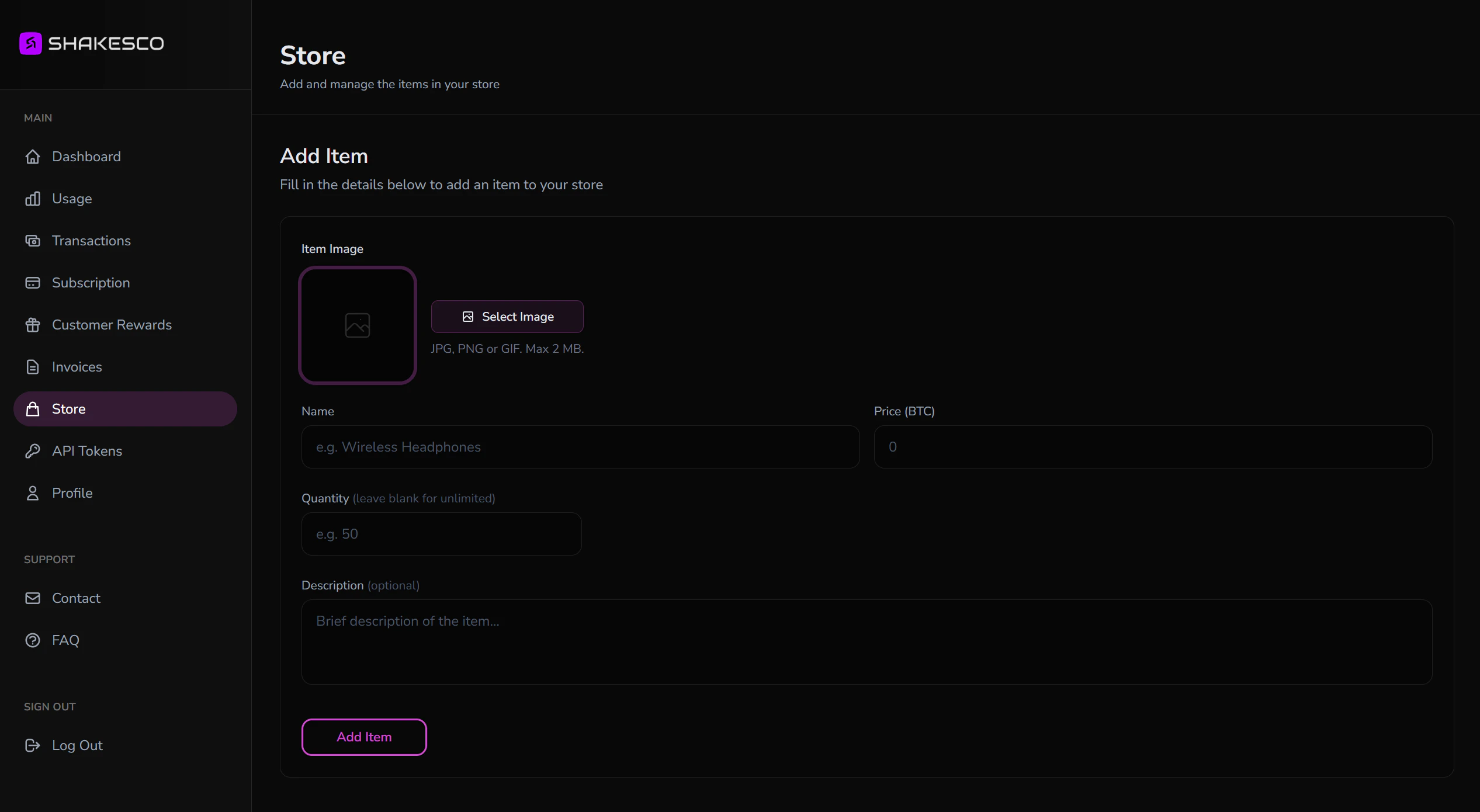
Add Item form
Fill in the following details for each product:image
Upload a product image (JPG, PNG or GIF, max 2 MB). Shown to customers on the store tab.
string
required
Product name displayed to customers (e.g. “Wireless Headphones”)
number
required
The checkout automatically shows the equivalent in the customer’s local currency.
number
Available stock. Leave blank for unlimited.
string
Optional short description shown on the store listing.
How Customers Shop
When a customer visits your payment link and clicks Store, they see your product catalogue. They can add items to a cart and complete checkout in crypto. The payment is settled directly to your account.Query Your Store via API
You can fetch your store items programmatically using the Payments API, useful for syncing with your own website or app. List all items:Store API Reference
Full endpoint documentation for browsing store items
Next Steps
Send Invoices
Create professional invoices for your customers
API Overview
Explore all API capabilities for your payment link